
Adding Replays in Godot
Why Replays?
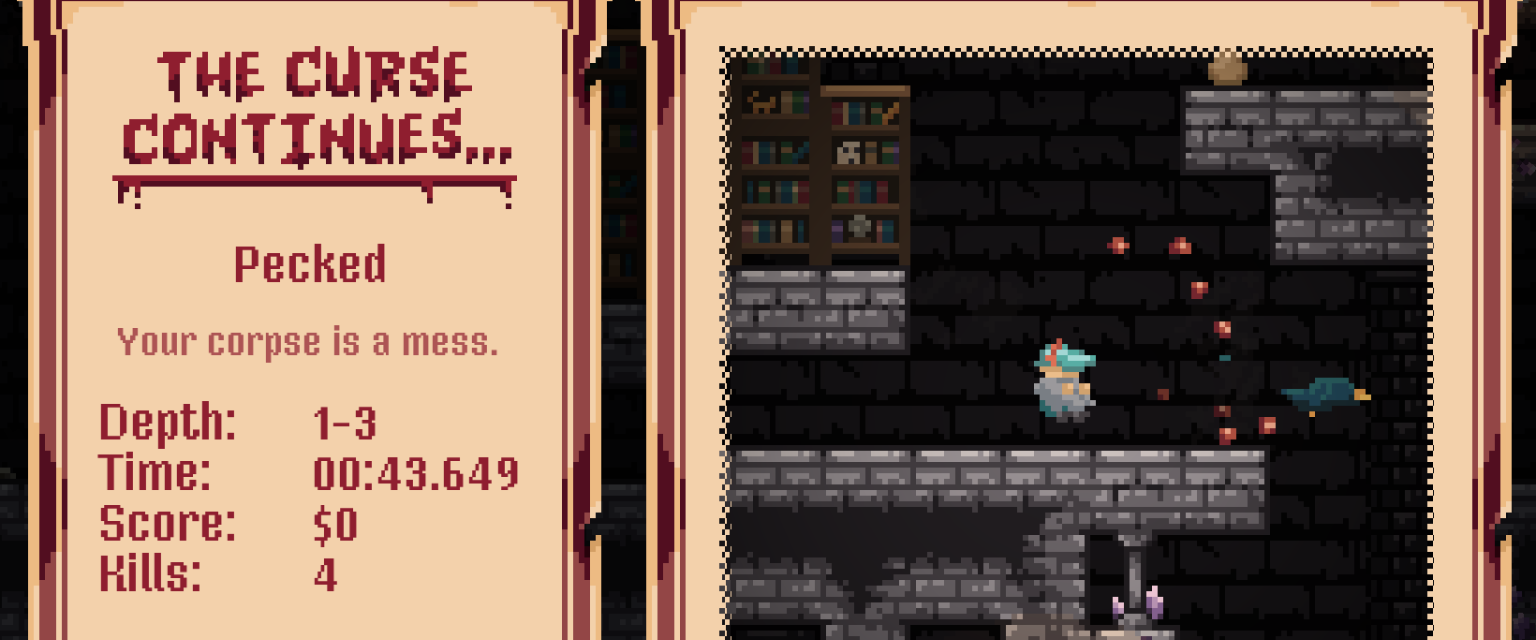
In the game I’m working on, Corvian Curse, death is not uncommon. Sometimes a lot can be happening and your run is suddenly over. If you weren’t paying attention you might have missed what killed you. Without knowing why your run ended it can feel unfair and you lose an opportunity to learn from your death.
Because of this we wanted to give the players a replay of the moments leading up to the player’s death. Not only would this be great to see exactly what happened, but sometimes they’re just hilarious to watch over and over.
Getting Started - A Circular Buffer
We started simple. Just record frames from the game into a circular buffer. When the player dies, stop recording and show them whatever’s in the buffer.
A circular buffer (or ring buffer) is just an array where you write to the next position each frame and wrap around to the beginning when you reach the end. Old frames get overwritten by new ones automatically. You never need to shift elements or manage memory, just keep a write index and a size counter.
var _buffer: Array[Image] = []
var _buffer_index := 0
var _buffer_size := 0
var _max_frames: int

func _ready() -> void:
    _max_frames = int(buffer_seconds * capture_fps)
    _buffer.resize(_max_frames)
To record a frame, you grab the viewport’s texture as an Image and store it at the current index:
func _store_frame(image: Image) -> void:
    _buffer[_buffer_index] = image
    _buffer_index = (_buffer_index + 1) % _max_frames
    _buffer_size = mini(_buffer_size + 1, _max_frames)
And to read the frames back in chronological order, you just need to know where the oldest frame is. If the buffer hasn’t wrapped yet, it’s index 0. If it has, it’s wherever the write index currently points:
func get_replay_frames() -> Array[Image]:
    var result: Array[Image] = []
    result.resize(_buffer_size)

    if _buffer_size < _max_frames:
        for idx in range(_buffer_size):
            result[idx] = _buffer[idx]
    else:
        var start := _buffer_index
        for idx in range(_buffer_size):
            result[idx] = _buffer[(start + idx) % _max_frames]

    return result
And that’s it. Just Image objects in a ring. We settled on a 5 second buffer at 30 FPS which ends up storing 150 frames. While the game runs at 60 FPS we felt 30 FPS looks perfectly fine in a replay and cut our storage in half. The frame skip is calculated from the physics tick rate so it adapts automatically if that ever changes.
This first version worked. You could see yourself die. But there were problems.
Cropping Around the Action
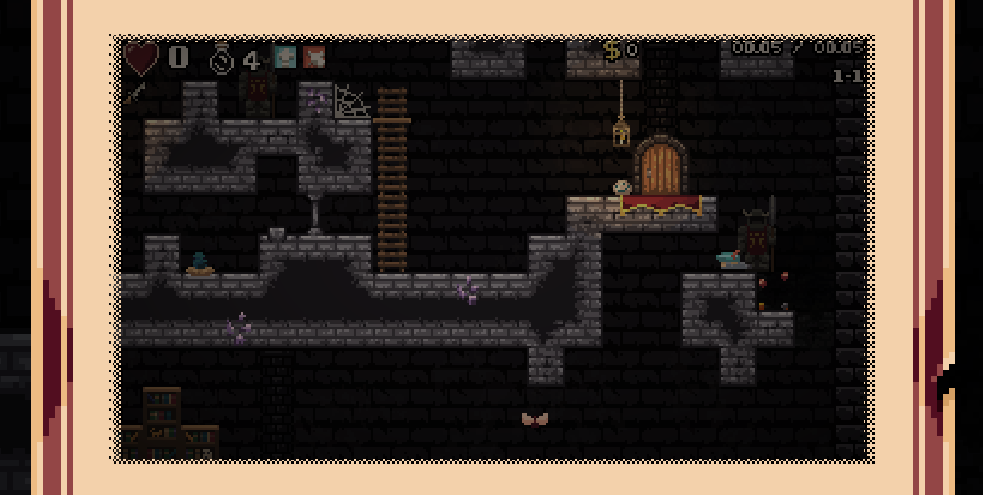
The first obvious issue was the size. Capturing the full viewport and displaying it scaled down in a small modal made it hard to see the action. Most of the level isn’t interesting for a replay. What matters is what’s happening around the player. So instead of capturing everything I cropped a region centered on the player.
We added an option to set a capture_size (we ended up using 128x128) and each frame the capture code calculates where to crop. Since the game scales up from 320x180 to the display resolution, we need to account for that ratio when mapping the camera position to image coordinates:
var center := camera_position * scale_factor
var camera := get_viewport().get_camera_2d()
if camera:
    var screen_center := camera.get_screen_center_position() * scale_factor
    center = (camera_position * scale_factor - screen_center) + image_size * 0.5

var half := scaled_capture / 2
var crop_x := clampi(int(center.x) - half.x, 0, int(image_size.x) - scaled_capture.x)
var crop_y := clampi(int(center.y) - half.y, 0, int(image_size.y) - scaled_capture.y)
var cropped := image.get_region(Rect2i(crop_x, crop_y, scaled_capture.x, scaled_capture.y))
The crop position is clamped so it never goes out of bounds. If the player is near the edge of the level, the crop shifts to stay within the viewport.
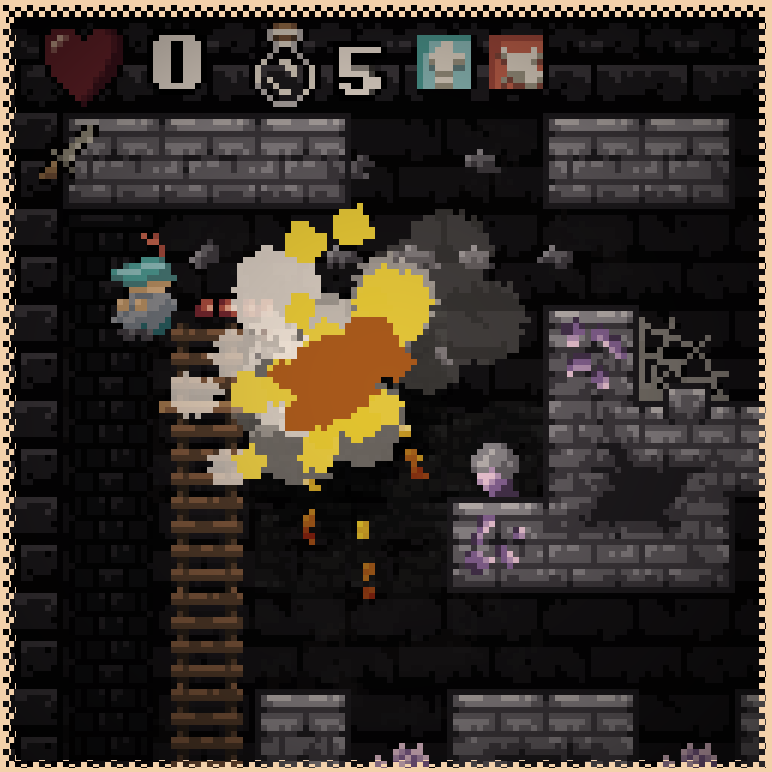
This is looking much better but there were still some problems.
Getting Rid of the UI with a SubViewport
While I was happy with the size, now I was disappointed with seeing various aspects of the UI showing up in the replays. At first I tried offsetting the view down to hide the HUD but if you were at the top of a level when you died there was just no way to keep the player in the viewport while not showing the HUD.
There were other UI issues as well. When the death menu pops up there’s a fade that darkens the screen behind. While we were stopping the recording before the menu we were still seeing the fade show up in the replay. If I cut off the replay before the fade it would feel too abrupt. As much as I tried working around this with timing and offsets it was time to re-visit the way we record these frames.
The fix was to render the game world into a separate SubViewport that shares the main viewport’s World2D but doesn’t include any UI layers.
func _setup_sub_viewport() -> void:
    _sub_viewport = SubViewport.new()
    _sub_viewport.size = capture_size
    # Start disabled, switch to `UPDATE_ALWAYS` while recording is active.
    _sub_viewport.render_target_update_mode = SubViewport.UPDATE_DISABLED
    # Default is bilinear which would make our pixels look blurry
    _sub_viewport.canvas_item_default_texture_filter = \
        SubViewport.DEFAULT_CANVAS_ITEM_TEXTURE_FILTER_NEAREST
    add_child(_sub_viewport)

    _sub_camera = Camera2D.new()
    _sub_viewport.add_child(_sub_camera)
The SubViewport has its own Camera2D that mirrors the position of the game’s main camera. Each physics frame, the game feeds the camera position in and the SubViewport renders just the world (sprites, tiles, particles, physics bodies) at exactly the capture_size resolution without any of the UI elements!
func _process_world_only_capture() -> void:
    var main_world := get_viewport().world_2d
    if _sub_viewport.world_2d != main_world:
        _sub_viewport.world_2d = main_world

    # Mirror camera limits from the game camera
    var scene_camera := get_viewport().get_camera_2d()
    if scene_camera:
        _sub_camera.limit_left = scene_camera.limit_left
        _sub_camera.limit_top = scene_camera.limit_top
        _sub_camera.limit_right = scene_camera.limit_right
        _sub_camera.limit_bottom = scene_camera.limit_bottom

    _sub_camera.global_position = _camera_position + camera_offset
Since the SubViewport renders directly at 128x128, there’s no intermediate full-resolution capture followed by a crop and resize. It’s rendering exactly what we need.
A Quirk with Dynamic Bodies
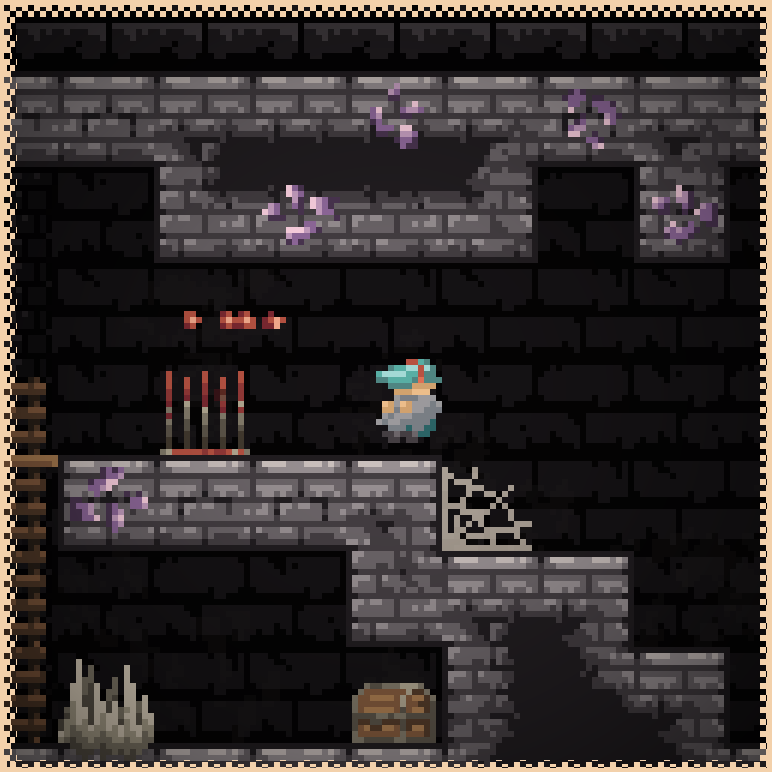
One issue I hit was that newly spawned RigidBody2D nodes wouldn’t show up in the SubViewport until the camera moved.
I don’t know the exact reason for this but I was able to fix it with a tiny sub-pixel jitter on the camera position:
var jitter := Vector2(0.01, 0) if _frame_counter % 2 == 0 else Vector2(-0.01, 0)
_sub_camera.global_position = _camera_position + camera_offset + jitter
Alternating 0.01 pixels each frame is invisible to the player but enough to force the renderer to re-evaluate what’s visible. It doesn’t feel like the greatest solution but it worked so I moved on.
First-Frame Rendering
Another subtle issue I ran into was that when I started capturing frames, the SubViewport would need a couple of frames for the rendering pipeline to fully flush the new scene content. If I grabbed a frame immediately, it would often have stale or blank frames.
The solution I used was to just wait for two frame_post_draw signals from the RenderingServer before enabling captures when you enter a level.
Saving Replays
After I had this feature implemented I realized that some of these were great and I’d love to be able to save them and watch them back later.
Originally I was thinking it would be nice to save as a gif or mp4 but it felt like a huge dependency to pull in for this feature. Ultimately I decided on something super simple, just write each frame as a png out to disk. This is where being a pixel art game really pays off as we’re just writing at most 150 frames of 128x128 pixels.
Each replay is a folder containing numbered png files and a metadata config:
user://replays/
  20260330_143022/
    replay.cfg
    0000.png
    0001.png
    0002.png
    ...
The metadata file stores data such as timestamp, frame count, FPS, duration, and an arbitrary dictionary for game-specific data like the death message or score.
When I first added the save functionality I noticed a large hitch while the images were being written to disk so I looked into offloading this to a WorkerThreadPool.
First I do the encoding to png. This happens on the main thread because the buffer could change if someone saves and immediately starts playing again. By encoding up front we get a snapshot of the data that the worker thread can write without worrying about the buffer changing underneath it. Then we push the actual file writes off to the WorkerThreadPool:
# Encode on main thread
var png_data: Array[PackedByteArray] = []
png_data.resize(frames.size())
for frame_idx in range(frames.size()):
    png_data[frame_idx] = frames[frame_idx].save_png_to_buffer()

# Write to disk in background
WorkerThreadPool.add_task(_write_png_files.bind(dir_path, png_data))
A nice side effect of storing replays as numbered pngs is that players can easily turn them into videos with ffmpeg:
ffmpeg -framerate 30 -i %04d.png -vf "scale=512:512:flags=neighbor" -c:v libx264 -pix_fmt yuv420p -crf 18 replay.mp4The flags=neighbor is important here, it scales up the 128x128 frames using nearest-neighbor so the pixels stay clear instead of getting blurry.
Playing It Back
The playback side is surprisingly simple. A ReplayPlayer node extends TextureRect and cycles through the frame array on a timer. It takes an array of Image frames and an FPS value, creates an ImageTexture, and swaps out the image each time enough time has elapsed. It supports looping, variable playback speed, and seeking to a specific frame. Since it’s just a TextureRect, we can also put a shader on it for fun effects like sepia.
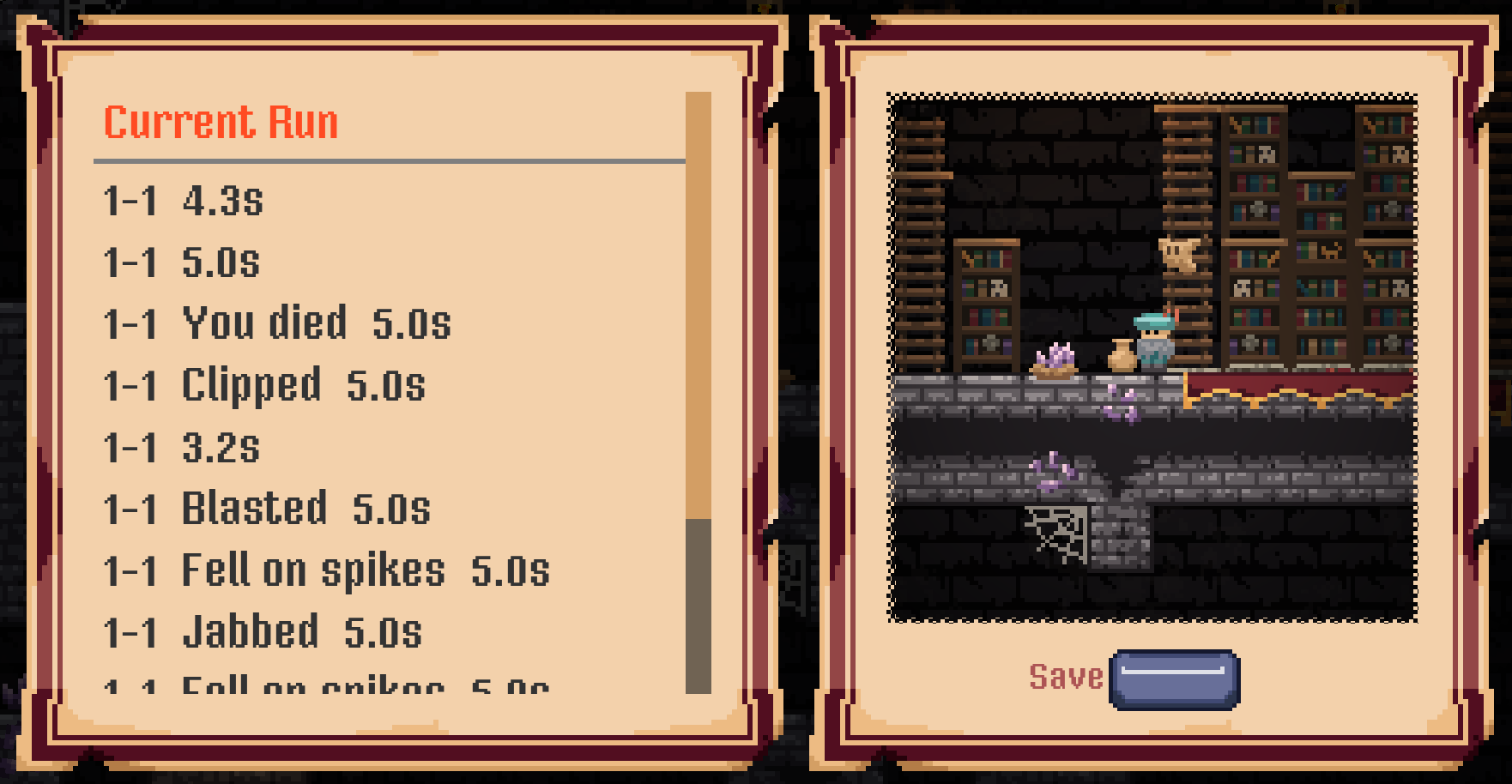
Once I had the replay menu working for saved replays, I realized I could also expose the live buffer as a “Current Run” entry. This turned out to be a super cool feature I didn’t even plan for. If something hits you mid-run but doesn’t kill you, you can pause, open the replay menu, watch what just happened, and save it right there. While originally created just for deaths, it turned out this is nice to have at any time.
Takeaways
This is something I’ve had in my mind for a bit. Recently one of our other developers, BronxTaco, mentioned it as well and nerd sniped me into actually building it. I definitely ended up going down a few more rabbit holes than I expected from my initial naive implementation but I think in the end we got something that works really well and genuinely enhances the gameplay experience.
A lot of the solutions here only really work because we’re a low resolution pixel art game that can use nearest neighbor scaling so this definitely won’t work for everyone but I hope it can be useful to someone, or at least entertaining to read about the journey to getting this working.